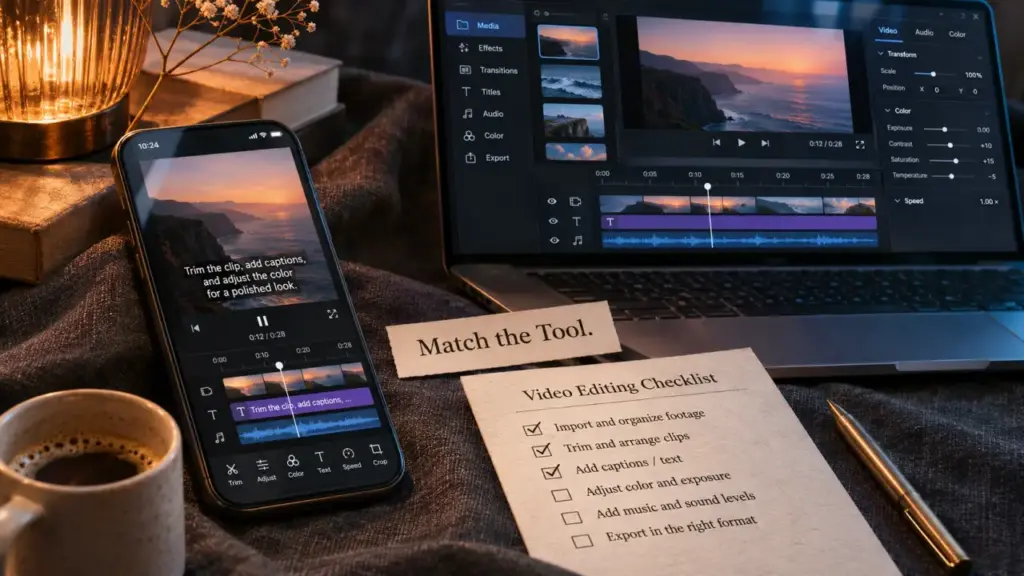
Choose Canva or Adobe Express for branded videos, CapCut or VEED.IO for caption-led editing, Descript for spoken content, and Opus Clip to repurpose longer recordings. InVideo AI is an option when you want to build a video from a written brief. The right choice depends on what you already have: footage, a webinar, a script, or an idea.
Twitter video tools cover different tasks, from creating and editing to repurposing and downloading. Match the tool to your production bottleneck before paying for features you may not use.
Match the tool to your starting material
You do not need software made specifically for X. A general video editor can work if it produces readable captions, framing that suits your content, and an export your account can upload. Start with the asset you want to turn into a post.
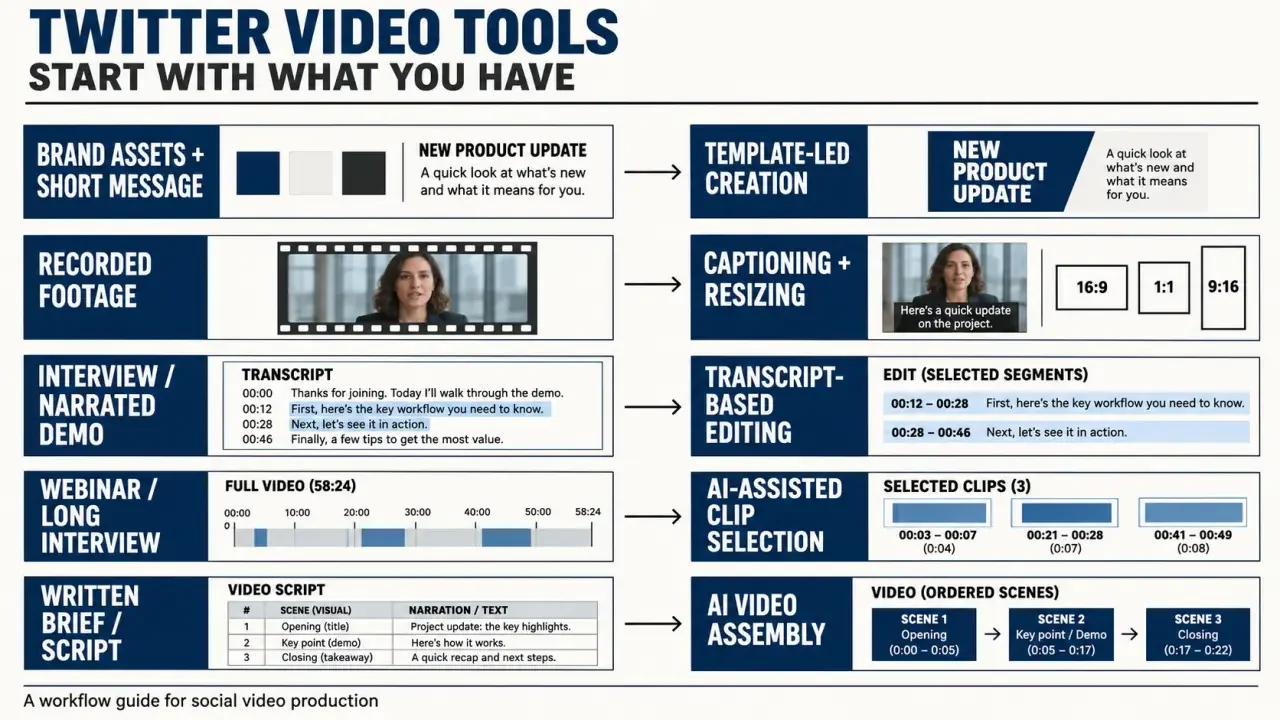
| Starting point | Tools to shortlist | Main advantage | Trade-off to check |
|---|---|---|---|
| Brand assets and a short message | Canva, Adobe Express | Template-led production | Control over detailed edits |
| Recorded footage | CapCut, VEED.IO | Captions, trimming, and resizing | Export restrictions and paid features |
| Interview or narrated demo | Descript | Text-based editing | Transcript correction effort |
| Webinar or long interview | Opus Clip | AI-assisted clip selection | Context and framing accuracy |
| Written brief or script | InVideo AI | AI-assisted video assembly | Visual relevance and revision effort |
Beginners should start with the simplest workflow that fits their material. Canva suits creators who are comfortable arranging slides and brand elements. CapCut is a more natural starting point for editing footage on a timeline. Either way, review the finished video before publishing.
Use AI where it removes work, not editorial judgment
Generate from a script when filming is the obstacle
AI video generation can turn a product announcement or educational point into a sequence of visuals and narration. InVideo AI is one option; Magiclight AI and Framia Pro also market Twitter-focused creation workflows. Compare their output using the same brief rather than relying on polished demonstrations.
Check whether a tool creates generated footage, assembles stock footage, uses animated templates, or presents an avatar. These approaches produce different results. If you need a voiceover or avatar, review pronunciation, editing controls, commercial-use terms, and consent requirements for cloned voices. For a software demonstration, a real screen recording is usually more useful than synthetic imagery.
Repurpose recordings when the expertise already exists
Opus Clip can help find short segments in longer recordings. Descript suits a more deliberate workflow, letting you edit spoken material through its transcript. Review AI-selected highlights carefully: a strong sentence can lose its meaning if the question or qualification before it is missing.
Each shorter version removes context from the original recording. A webinar may provide a focused explanation, which can then become a short feed clip. As you cut, add a clear cue: identify the speaker, name the problem, or include a qualifying caption. That helps viewers understand the clip without needing to find the full recording.
Test captions, framing, and exports before subscribing
Captions deserve priority: 80% of X/Twitter users scroll with the sound off. Auto captions are a starting point, not a finished accessibility layer. Correct product names, punctuation, and technical terms, then check that the text is readable on a phone.
- Caption control: Check whether you can edit wording, timing, line breaks, contrast, and placement.
- Aspect-ratio adaptation: Test square, landscape, or vertical versions against your distribution needs. Auto-reframing can crop out a demonstration or a second speaker.
- Brand consistency: Confirm that reusable fonts, colors, logos, and templates are included in the plan you are considering.
- Export compatibility: Check current X upload requirements for your account, including duration, file size, and supported encoding.
Run the same 15-second X video through each shortlisted tool. Include speech, a product name, a screen detail, and a logo. Export the file rather than judging it in the editor preview. The finished version reveals watermarks, compression, caption placement, and rendering delays.
Choose a plan around your publishing workflow
A solo creator may need only one editor with reliable captions. For an agency, browser access alone does not guarantee a workable review process. Check shared assets, permissions, commenting, version handling, and how clients approve a final cut.
Pricing and feature access change, so compare current plans instead of assuming a free editor includes every advertised AI feature. Check for practical limits such as:
- Watermark removal and export resolution.
- Transcription minutes, generation credits, and storage.
- Separate charges for collaborators or brand workspaces.
- Commercial rights for stock assets, music, and synthetic voices.
If you need to download an existing post, a utility such as Twitter Video Downloader serves a different purpose from an editor. Saving a file does not grant permission to reuse it. Use original files for your own content, get permission to reuse someone else’s work, and never give account credentials to a downloader.
Choose based on usable output per hour. Include caption corrections, reframing, approvals, and export fixes in your calculation, not just generation speed. The best fit is the tool that gets your content ready to publish with the least avoidable rework.
Practical questions before choosing a video tool
Do you need creation or repurposing?
Creation tools start with a script, prompt or template. Repurposing tools start with existing footage and find shorter moments. Choosing the wrong category usually adds editing work instead of removing it.
Which export checks matter?
Confirm resolution, aspect ratio, frame rate, codec, watermark rules and caption export before paying. Run a short sample through the complete workflow and inspect the uploaded result on both desktop and mobile.
How should teams compare AI features?
Judge the time saved after correction, not the number of AI buttons. Auto-captions, clipping and reframing are valuable only when the output needs little cleanup and remains consistent with the brand.
What about rights and reuse?
Check the licence for stock assets, music, voices, avatars and generated media. Keep source files and approval records when content is produced for a client or a regulated brand.
When is a simple editor enough?
If the workflow is occasional and the footage is already clean, a general editor with presets may be faster than a complex AI suite. Specialised software earns its place when the same task repeats often.